
Tlauncher Download Best Minecraft Launcher Latest Version (2026)
TLauncher lets you play different Minecraft versions on your PC, install mods, customize skins, and adjust Java settings. Get download information and setup tips for 2026.

Security Verified
TLauncher is a Minecraft launcher used by players who want to manage different game versions, install mods, change character skins, and adjust game settings from one place. Instead of manually organizing every Minecraft installation, players can select a supported version and prepare the files needed to start the game. The launcher is particularly useful for people who switch between older releases, modded worlds, and different Minecraft setups.
The software is mainly used on Windows computers, although its developer also provides installation options for Linux and macOS. It works with Minecraft Java Edition setups and includes tools for managing Java, memory allocation, and supported game modifications. The available options depend on the computer and the Minecraft version selected.
For anyone planning a TLauncher Download, it helps to understand the difference between the launcher and Minecraft itself. The launcher manages game files and startup settings, while Minecraft is a separate game with its own licensing, accounts, and server requirements. Downloading a launcher does not automatically provide a legitimate Minecraft license.
This article explains how the launcher works, its main features, Minecraft version support, installation process, system requirements, mods, skins, multiplayer settings, and common problems. It also covers download sources and the precautions worth taking before installing third-party game software.
What Is TLauncher?
TLauncher is a third-party application that helps players start and manage TLauncher Java Edition on desktop computers. Its interface provides a list of available game versions along with settings for Java, memory, accounts, and other supported options. Players can prepare a basic installation or work with a customized game setup that includes mods and additional files.
One reason players use a separate launcher is that different Minecraft versions do not always work with the same modifications. A mod created for an older release may stop working after a game update. Keeping the correct version available makes it easier to return to an existing world or play on a server that has not moved to a newer release.
The launcher also includes its own account and character skin features. These are separate from the services provided by Microsoft and Mojang. Players who own Minecraft should understand which account system they are using and whether their chosen servers require an authenticated Minecraft account.
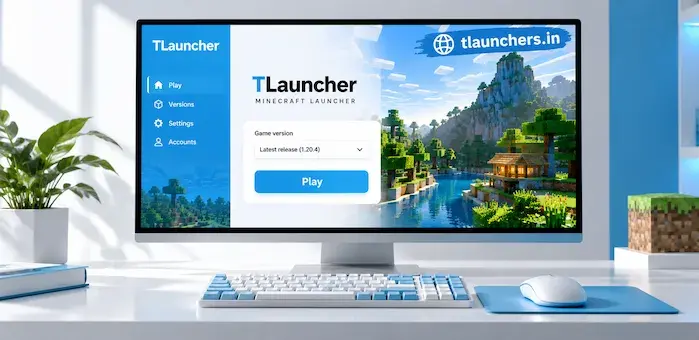
Main Features of TLauncher
The launcher brings several Minecraft management options into one interface. These tools are most useful when players want to try different game versions or customize their installation rather than always using the same setup.
Minecraft Version Selection
Minecraft has received many updates over the years. Some players prefer an older release because they have an existing world, enjoy a particular gameplay system, or want to use mods that have not been updated.
The launcher displays available game versions and allows players to select one before starting Minecraft. Depending on the release, the list may include standard versions, older builds, and supported test releases.
Version selection can help with:
Before opening a valuable world in another Minecraft version, make a backup. Some updates change world data, and returning to an earlier release may cause problems.
Mods and Modpacks
Mods change how Minecraft works. Some add new blocks, tools, creatures, or game mechanics, while others focus on performance or visual improvements. A modpack combines several modifications into a setup intended to work together.
TLauncher provides tools for working with supported modded versions and modpacks. The developer also maintains installation guides for individual mods and custom game configurations.
A mod needs to match the Minecraft release and the mod loader used by the installation. A file designed for one version of Forge will not necessarily run on Fabric or another Minecraft version.
Large modpacks can also require more RAM and storage than the standard game. Check the pack’s requirements before installing it on a computer with limited resources.
Forge, Fabric, and OptiFine
Minecraft modifications often depend on extra software. Forge and Fabric are mod loaders that allow compatible modifications to run with selected game versions. OptiFine is commonly used for graphics customization and performance-related settings.
These tools serve different purposes:
Not every loader or graphics modification works with every Minecraft release. Players should choose the required version first and install files made specifically for that setup.
Custom Character Skins
A Minecraft skin changes how a player’s character looks. Some people prefer a personalized appearance instead of using the default character design.
The launcher has a separate skin system that works with supported versions marked by the TL icon. Players can choose an available skin or upload a compatible image through their TLauncher account.
Skin support depends on the selected Minecraft version and account configuration. A custom appearance may not display correctly if the chosen release does not support the launcher’s skin system.
Premium account options also include additional appearance features. Players should review those options separately from ordinary Minecraft skins.
Java Settings
Minecraft Java Edition depends on the Java runtime. Different game releases may require different Java versions, particularly when moving between older and newer Minecraft installations.
The launcher provides Java configuration options and can manage the runtime for supported game versions. This reduces the need to manually switch between Java installations for every Minecraft release.
Problems can still appear when a player overrides the automatic settings or installs an incompatible runtime. Unless a modpack specifically requires a different configuration, leaving Java selection on the launcher’s default setting is usually a sensible starting point.
RAM Allocation
Minecraft uses system memory while running. The amount required depends on the selected game version, texture packs, mods, and the size of the world.
The launcher allows players to adjust memory settings. This can help when a large modpack needs more RAM than a basic installation, but increasing the allocation without considering total system memory can cause other problems.
For example, assigning nearly all available RAM to Minecraft may leave too little for Windows and background programs. Start with the requirements of the game or modpack, then adjust the allocation if necessary.
Multiplayer and Servers
Minecraft multiplayer lets players join shared worlds and game servers. A launcher can help prepare the correct game version, but the server determines which players and clients are allowed to connect.
Before joining a server, review these details:
Some servers require a legitimate authenticated Minecraft account. A third-party launcher does not bypass those requirements, and a server may reject an unsupported client.
How Does TLauncher Work?
A Minecraft launcher prepares the game files and settings needed to start a selected release. When a player chooses a version, the launcher checks the available installation files and may download missing components.
The selected profile determines which Minecraft release will start. Java settings, memory allocation, mods, and other options can affect whether the game opens correctly.
On the first launch of a version, additional files may be required. This can take longer than later launches, especially when the internet connection is slow.
Once the necessary files are ready, the launcher starts the game using the selected configuration. If something fails, the error may relate to Java, a missing library, a conflicting mod, or an unsupported version.
TLauncher Download for PC
The developer distributes desktop installation packages through its website. Available packages depend on the operating system, with Windows installers and other desktop formats provided for supported systems. More information about Windows installation is available on the TLauncher Download for PC page.
Before downloading, confirm that the website is the developer’s actual domain. Some third-party sites use similar names and distribute installer files that differ from the developer’s current releases.
Check the current package information and the digital signature where supported, rather than relying only on a version number written on a download button.
How to Download TLauncher
A launcher installer is not the same as a Minecraft APK. The desktop application is intended for Java Edition setups, and an Android package advertised under a similar name should not be assumed to be an official release.
How to Install TLauncher on Windows
The installation process depends on the package supplied by the developer. TLauncher For Windows users normally work with an executable installer, while some desktop distributions use Java-based packages.
The first game launch may require additional downloads. Keep the internet connection active until the required files have been prepared.
If Windows displays a security warning, inspect the installer rather than immediately disabling protection or bypassing the warning.
TLauncher for Windows, Linux, and macOS
The developer provides information about using the launcher on several desktop operating systems. The installation method and Java requirements can differ between platforms.
Windows PC
Windows is a common platform for Minecraft Java Edition. Players can use the launcher to select game releases, adjust supported settings, and manage modded installations.
The computer still needs enough processing power, memory, and graphics capability for the selected Minecraft version. A lightweight launcher does not make a demanding modpack run well on older hardware.
Linux
Linux installations may use packages or Java-based files, depending on the current distribution method. The user may need a compatible Java runtime and appropriate file permissions.
Different Linux distributions handle Java packages and installation commands differently. The developer’s platform-specific instructions should be followed rather than assuming that one installation command works everywhere.
macOS
The developer also publishes instructions for macOS users. Installation may involve a desktop package and the Java environment required by the chosen Minecraft version.
macOS compatibility can depend on the operating-system release, hardware architecture, and runtime configuration. Players should confirm those requirements before installing additional game files.
Minecraft Versions and Compatibility
One of the main reasons to use a version manager is that Minecraft content does not always work across releases.
An old world may contain data created by an earlier version. Likewise, a server running a particular release may not accept players who connect with a different one.
Older Minecraft Releases
Older releases remain useful for players who have existing worlds, specific mods, or servers built around those versions.
The important part is keeping the correct game files and compatible Java environment. Before changing an existing installation, back up your saved worlds and configuration files.
Minecraft Snapshots
Snapshots are test versions released during Minecraft development. They allow players to try upcoming changes before those changes reach a standard release.
Because snapshots can contain unfinished features and compatibility problems, they are better suited to testing than protecting a long-running world. Use a separate installation and keep a backup of anything important.
Modded Versions
A modded installation requires the game version, mod loader, and mods to work together. A mismatch between any of these components may stop the game from launching.
When adding a new mod, read its installation instructions and dependencies. Introducing several untested modifications at once makes it harder to identify which file caused a problem.
TLauncher Skins and Customization
Character customization is one of the features associated with the launcher. Its own skin system allows supported Minecraft versions to display appearances selected through a TLauncher account.
To use the feature, players generally need an account for the skin service, a compatible skin file, and a version marked as supporting the TL skin system.
The normal process involves:
A missing skin does not necessarily mean the file is damaged. Incorrect account settings or an unsupported Minecraft version can also prevent the appearance from showing.
Mods, Shaders, and Texture Packs
Minecraft can be changed in several ways, but mods, shaders, and texture packs do different jobs.
Mods can introduce gameplay mechanics, blocks, items, or other functionality. Shaders change how lighting and certain visual effects appear. Texture packs, now generally handled through resource packs, change the appearance of game assets.
A player might use a resource pack to change the visual style of blocks while keeping the gameplay almost unchanged. A mod could add a new type of machine or creature, while shaders might improve shadows and reflections.
Visual modifications can require more powerful graphics hardware. Before installing a large combination of mods and shaders, check whether the computer can handle the additional load.
Is TLauncher Safe to Use?
TLauncher is third-party Minecraft software and is not the official Minecraft Launcher supplied by Mojang or Microsoft. This distinction matters when downloading installers, handling game files, or entering account information.
Its developer publishes an official domain list and recommends verifying the digital signature of downloaded packages. Independent security research has also found unrelated or altered installers distributed through websites using similar TLauncher names.
There have been conflicting public assessments of the launcher’s security and privacy. A clean result from one scanner does not guarantee that every component, future update, or third-party copy is harmless.
Before installing third-party launcher software:
Players who own Minecraft and want a launcher maintained by the game’s publisher can use the official Minecraft Launcher from Microsoft or Minecraft’s website.
Common TLauncher Problems and Solutions
Minecraft startup errors can come from the launcher, the selected game version, Java, modifications, or missing files. Identifying the exact message is more helpful than changing several settings at once.
Launcher Does Not Open
The program may fail to start because of an installation problem, an incompatible Java environment, or interference from security software.
Try these checks:
Do not disable antivirus protection just to make an unknown executable run.
Minecraft Crashes During Startup
A game may crash when its Java version, memory setting, or installed mods do not match the selected release.
If the problem began after installing a mod, remove that modification and test the game again. For a heavily modified setup, try launching a clean version to determine whether the issue comes from the mods or the underlying game installation.
Java Error
Minecraft Java Edition requires a compatible runtime. Older releases and recent versions may use different Java environments.
The launcher can select suitable Java versions for supported releases, but manual overrides can cause errors. Review the runtime selection and return to the default configuration if it was changed without a specific reason.
Mods Are Not Working
A mod may not load if it was designed for another Minecraft version or mod loader. Some modifications also depend on additional libraries.
Compare the mod’s requirements with the installed game release. Check whether it needs Forge, Fabric, or another supported loader, and confirm that all required dependencies are present.
Skin Not Showing
The TLauncher skin system works only with supported setups. A skin may fail to appear if the user is signed into the wrong account or launches a version without the required TL skin support.
Confirm the account settings, skin upload, and selected version. The developer’s skin documentation explains which releases support its appearance system.
Cannot Join a Minecraft Server
Connection errors often happen when the player’s Minecraft version does not match the server, the server is unavailable, or the account does not meet its authentication requirements.
Check the server address, supported release, required mods, and login rules. If the server requires a legitimate Minecraft account, use an appropriately licensed and authenticated game installation.
TLauncher vs Official Minecraft Launcher
TLauncher and the official Minecraft Launcher serve a similar basic purpose, but they differ in their publisher, supported integrations, and account handling.
| TLauncher | Official Minecraft Launcher |
|---|---|
| Third-party Minecraft launcher | Distributed by Minecraft’s publisher |
| Provides tools for managing Java Edition setups | Integrates with Microsoft’s official Minecraft services |
| Includes its own skin system | Uses official Minecraft character and account services |
| Supports various modded setups | Supports legitimate game installations and official accounts |
| Requires independent assessment of third-party software risks | Distributed through official Minecraft and Microsoft channels |
Players should choose based on the account services they need, the versions they use, and whether they trust the software publisher.
A third-party launcher should not be presented as a substitute for purchasing Minecraft or as a guarantee of access to paid or authenticated servers.
Pros and Cons
Pros
- Supports selecting different Minecraft releases.
- Provides settings for Java and memory allocation.
- Offers tools for supported mods and modpacks.
- Includes its own character skin features.
- Useful for managing older Minecraft setups.
- Supports desktop operating systems.
- Provides options for experimenting with different game configurations.
Cons
- Not developed or officially supported by Mojang or Microsoft.
- Some websites distribute modified or unrelated installers under similar names.
- Java and mod incompatibilities can cause launch problems.
- Skin features do not work with every game version.
- Advanced modpacks may require considerable system resources.
- Some Minecraft servers require official account authentication.
- Privacy and third-party software security require careful consideration.
Frequently Asked Questions
Conclusion
TLauncher provides tools for managing Minecraft versions, Java settings, mods, and character customization on desktop computers. It can be useful for players who work with several game configurations or need access to older releases for specific worlds and modifications.
The setup still depends on the Minecraft version, computer hardware, and compatibility of any installed mods. Choosing the correct files and understanding account requirements can prevent many common problems.
Before installing, verify the download source, review the software’s security and privacy considerations, and keep backups of important Minecraft worlds.